FluentCap for International Meetings | Live Captions
Never miss a word in your global team meetings. FluentCap provides real-time transcription and translation for any video call — Zoom, Teams, Google Meet, and more.
- The Challenge of Multilingual Meetings
- How FluentCap Transforms Your Meeting Experience
- Step-by-Step: Using FluentCap in Your Next Meeting
- Real Benefits for Global Teams
- Thank You to Our Amazing Providers
- Frequently Asked Questions
- Conclusion
Have you ever been in an international meeting where you missed a critical point because of language barriers? Or spent the entire call frantically trying to keep up with a fast-talking colleague from another country? You're not alone. In today's global workplace, remote meeting transcription and translation aren't luxuries — they're necessities. We built FluentCap to help you participate confidently in every conversation, regardless of language.
The Challenge of Multilingual Meetings
The modern workplace is more global than ever. According to Buffer's State of Remote Work, over 70% of remote workers collaborate with colleagues in different countries. This brings incredible opportunities — and real challenges.
Common Pain Points
- Missing key information when participants speak too quickly or have unfamiliar accents
- Asking people to repeat themselves multiple times, which feels awkward and slows down the meeting
- Language barriers that prevent full participation and contribution
- Losing confidence in meetings where you're not 100% following the conversation
- No reliable record of what was discussed for follow-up
Traditional solutions often fall short. Auto-generated captions in Zoom or Teams can be inaccurate, especially with accents or technical terminology. Professional transcription services are expensive. And taking notes manually while trying to follow a conversation? Nearly impossible.
How FluentCap Transforms Your Meeting Experience
FluentCap is a free desktop application that captures any audio playing on your computer and converts it into real-time text captions. This means it works with any video conferencing platform — Zoom, Microsoft Teams, Google Meet, Webex, and more.
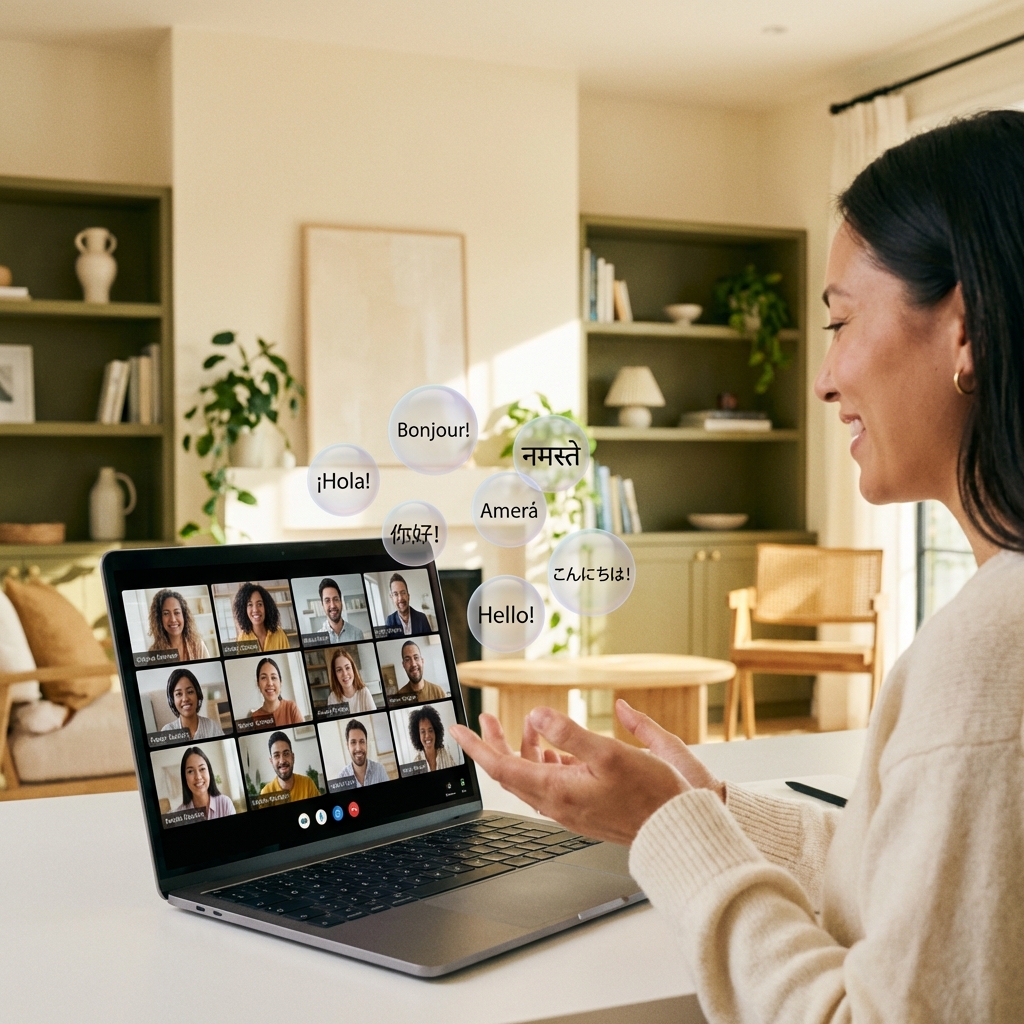
Key Features for Meeting Success
| Feature | How It Helps |
|---|---|
| Real-Time Transcription | See every word as it's spoken, never miss a detail |
| 50+ Language Translation | Understand colleagues speaking different languages |
| Works with Any Platform | Zoom, Teams, Meet, Webex — all captured seamlessly |
| Searchable Text | Find specific moments in the conversation later |
| Adjustable Display | Position captions where they're most comfortable |
Why FluentCap Beats Built-In Captions
| Aspect | FluentCap | Built-In Captions |
|---|---|---|
| Accuracy | 95-98% with top providers | Varies widely |
| Translation | Real-time, 50+ languages | Usually none |
| Cross-Platform | Any audio source | Only that app |
| Meeting Notes | Copy/export full transcript | Limited or none |
| Cost | Free (with provider credits) | Included but limited |
Step-by-Step: Using FluentCap in Your Next Meeting
Getting started with FluentCap takes just a few minutes. Here's how to use video call translation and transcription in your next international meeting:
Step 1: Download FluentCap
Visit fluentcap.live and download the app for your operating system (Windows or macOS). Installation takes under 2 minutes.
Step 2: Choose Your Speech-to-Text Provider
FluentCap works with several amazing providers. Each offers generous free tiers:
- Deepgram: $200 free credits (~750 hours of transcription)
- AssemblyAI: $50 free credits (~140 hours)
- Gladia: 10 free hours every month
- Shunya: $100 free credits (~300 hours)
Sign up with your preferred provider, get your API key, and enter it in FluentCap settings.
Step 3: Start Your Meeting
Join your video call as usual — Zoom, Teams, Meet, or any other platform. Then click Start in FluentCap. That's it!
Step 4: Follow Along with Captions
A floating caption window appears on your screen. Position it wherever feels most natural — next to the video call, below the speaker view, or on a second monitor.
Pro Tips:
- Increase text size for easier reading
- Choose a position that doesn't block important screen elements
- Use the translation feature if speakers are in another language
Step 5: Review and Use Your Transcript
After the meeting, you have a complete text record of everything said. Use it for:
- Creating meeting summaries
- Following up on action items
- Sharing notes with colleagues who couldn't attend
- Referencing specific discussions later
Real Benefits for Global Teams
FluentCap is already helping professionals around the world collaborate more effectively. Here's what multilingual meetings look like with real-time captions:
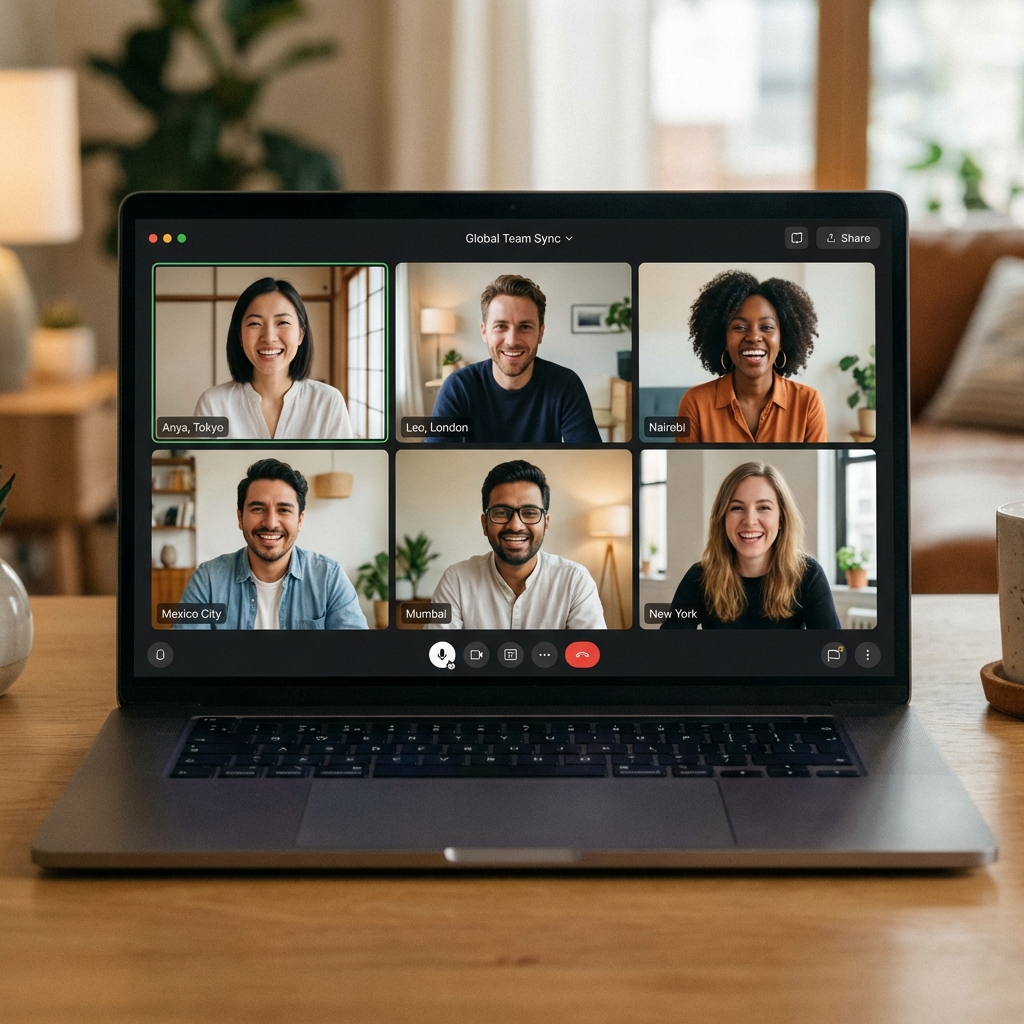
Never Miss Important Points
When your manager mentions a deadline or a client shares feedback, you'll catch every word. No more nodding along hoping you understood correctly.
Participate with Confidence
Knowing you can read what's being said removes the anxiety of "did I understand that right?" You can focus on contributing your ideas rather than struggling to follow.
Include Everyone
Team members with hearing difficulties, non-native speakers, or anyone in a noisy environment can fully participate. FluentCap makes meetings more inclusive.
Create Instant Meeting Notes
Stop trying to take notes while participating. The transcript gives you a complete record you can review and summarize after the call.
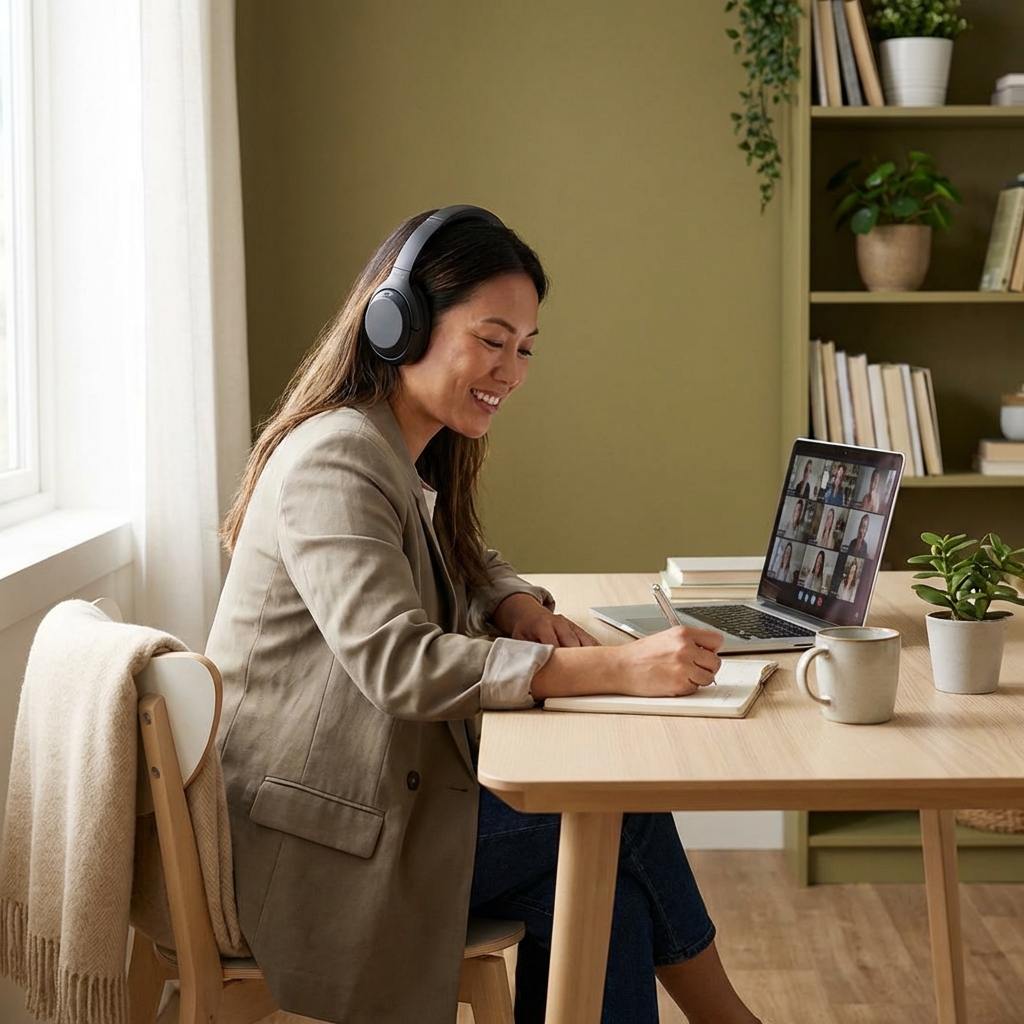
Bridge Time Zone Presentations
When you need to present to a team in another country, they can follow along with translated captions. Your message gets through clearly.
Thank You to Our Amazing Providers
FluentCap is made possible by incredible speech-to-text providers who believe in making communication accessible. They generously offer hundreds of hours of free transcription:
- Deepgram: $200 free credits (~750 hours)
- AssemblyAI: $50 free credits (~140 hours)
- Gladia: 10 free hours every month (resets monthly)
- Shunya: $100 free credits (~300 hours)
When your free credits run out, we wholeheartedly encourage you to continue supporting these providers. Their pricing is incredibly fair — just $0.15-0.40 per hour, which is 60-80% cheaper than subscription apps charging $15-30 per month.
These providers deserve your support for making speech-to-text technology accessible to global teams everywhere.
Frequently Asked Questions
Does FluentCap work with Zoom and Microsoft Teams?
Yes! FluentCap captures any audio playing through your computer, so it works with Zoom, Microsoft Teams, Google Meet, Webex, Slack huddles, Discord calls, and any other platform you use for meetings.
Can FluentCap translate what my colleagues say in real-time?
Absolutely. FluentCap supports real-time translation for 50+ languages. If your colleague is speaking Japanese and you need English captions, FluentCap handles that seamlessly.
Will my colleagues know I'm using FluentCap?
No. FluentCap runs locally on your computer and simply captures the audio output. There's no indicator to other participants that you're using transcription.
How accurate is the transcription for business meetings?
With providers like Deepgram and AssemblyAI, you can expect 95-98% accuracy in clear audio conditions. Technical terminology and proper nouns improve over time as the AI learns.
Can I share the meeting transcript with my team?
Yes! You can copy the full transcript or export it. Many users create meeting summaries by reviewing the transcript and pulling out key points and action items.
Is my meeting audio kept private?
FluentCap sends audio directly to your chosen provider for transcription. We don't store or access your audio. Each provider has their own privacy policies — all are designed for enterprise security.
Conclusion
We built FluentCap because we believe language should never be a barrier to professional success. In a world where global teams are the norm, everyone deserves to participate fully in every meeting.
Whether you're a remote worker collaborating across time zones, a professional joining international client calls, or a team lead wanting to ensure everyone is included, FluentCap helps you communicate with confidence.
When you're ready, give FluentCap a try. We hope it helps you connect with your global colleagues in a way that feels natural and empowering.
Related Articles
Looking for more ways to use FluentCap? Check out these guides:
- Real-Time Captions for Deaf & Hard of Hearing — Making meetings accessible for everyone
- Watch Foreign Movies with Real-Time Subtitles — Enjoy entertainment in any language
- Free Transcription: 750+ Hours Available — Maximize your free credits from providers
- Family Video Call Translation — Real-time translation for multilingual family video calls
- Overcoming Language Challenges in Global Teams — A practical framework for multilingual remote collaboration
— FluentCap Team
Built to bring good things to the world.