Highlight Feature: Save Important Moments in Transcripts
Never lose important moments again. FluentCap's Highlight feature lets you mark, organize, and navigate to key points in your transcripts — perfect for language learning, research, and meeting notes.
- Why Highlighting Matters
- How to Highlight in FluentCap
- The Highlight Collection Panel
- Cross-Session Navigation
- Highlight Management
- Use Cases
- Frequently Asked Questions
- Start Highlighting Today
Why Highlighting Matters
When you're watching a foreign film, attending an international meeting, or studying a lecture in another language, certain moments stand out. A key phrase, an important term, a memorable quote — these are the moments you want to remember.
Traditional transcription apps let you capture text, but they don't help you organize what's important. You end up with long transcripts where valuable insights get buried in pages of text.
FluentCap's Highlight feature solves this by letting you mark, organize, and instantly navigate to the moments that matter most.
The Problem with Long Transcripts
Research shows that humans can only retain a limited amount of new information at once. According to cognitive psychology studies, our working memory holds approximately 7 items (plus or minus 2) at a time.
When you're transcribing a 2-hour lecture or a long movie, that's thousands of words flowing past. Without a way to mark key moments, you lose them forever.
FluentCap's Highlight feature gives you a way to mark those moments instantly — even while the transcript is still streaming in real-time.
How to Highlight in FluentCap
Highlighting in FluentCap is designed to be fast and intuitive, whether you're in a live session or reviewing history.
During Live Transcription (Auto-Highlight Mode)
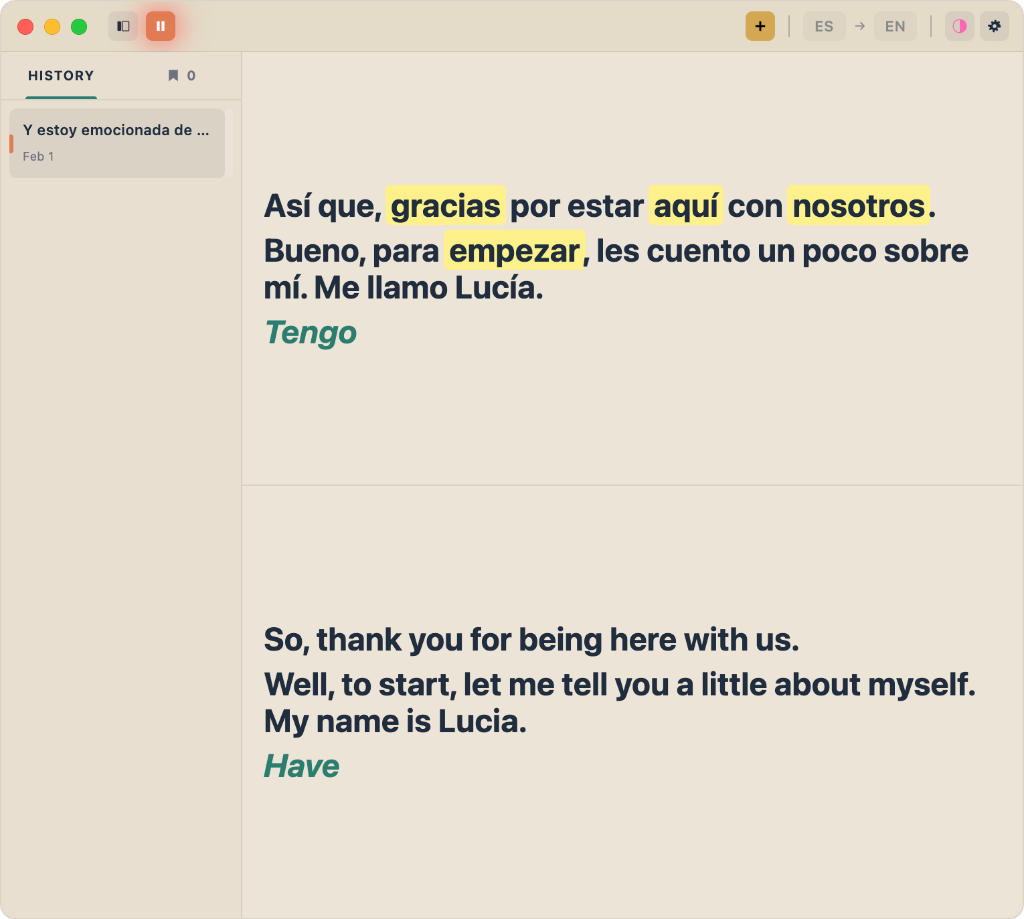
When you're in a live recording session, FluentCap uses Instant-Apply Mode to maximize speed:
- Select text anywhere in the transcript (source or translation)
- The highlight is applied immediately — no menu clicks needed
- Continue capturing without interruption
This "Auto-Highlight" approach is designed for high-velocity environments like live meetings or fast-paced lectures where traditional context menus would be too slow.
In History Mode (Menu-Based)
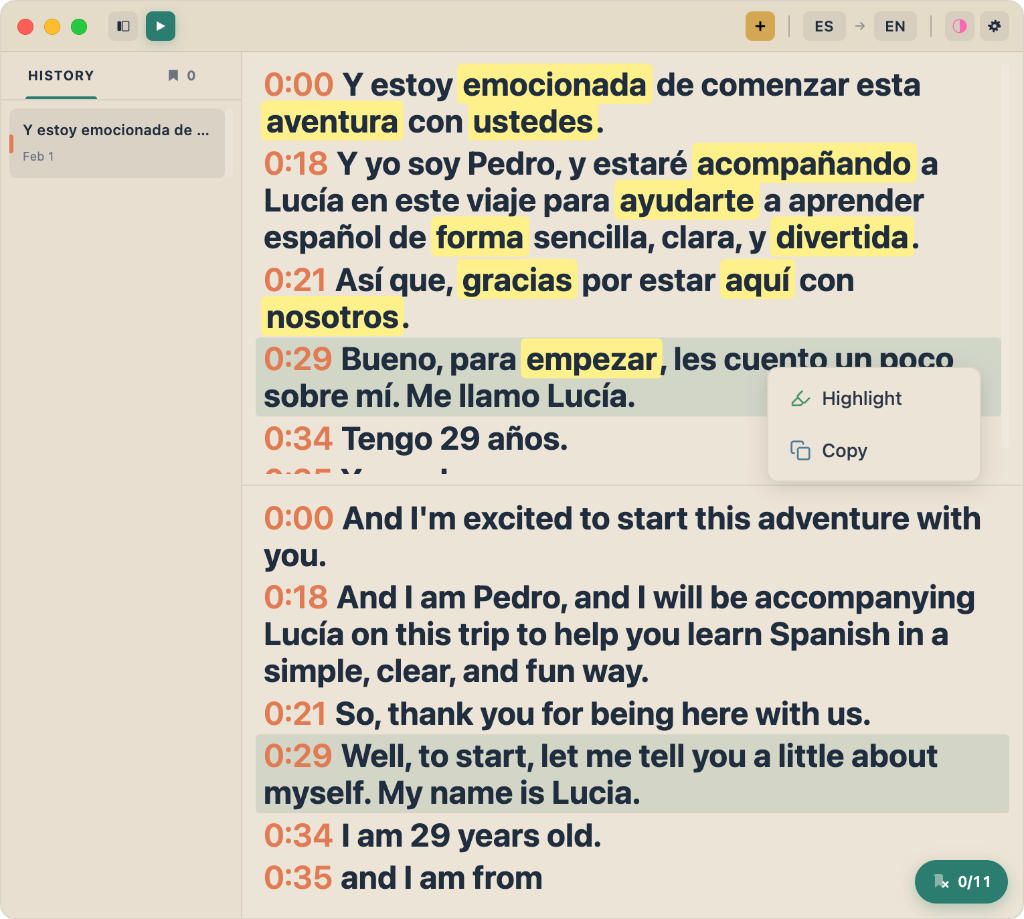
When reviewing past sessions, FluentCap shows a context menu when you select text:
- Select text anywhere in the transcript
- A menu appears with options: Highlight and Copy
- Click Highlight to mark the text with a warm yellow background
- The highlight is saved permanently with your session
Removing Highlights
Changed your mind? Removing highlights is just as easy:
- Hover over any highlighted text
- A small Remove button appears
- Click to remove the highlight
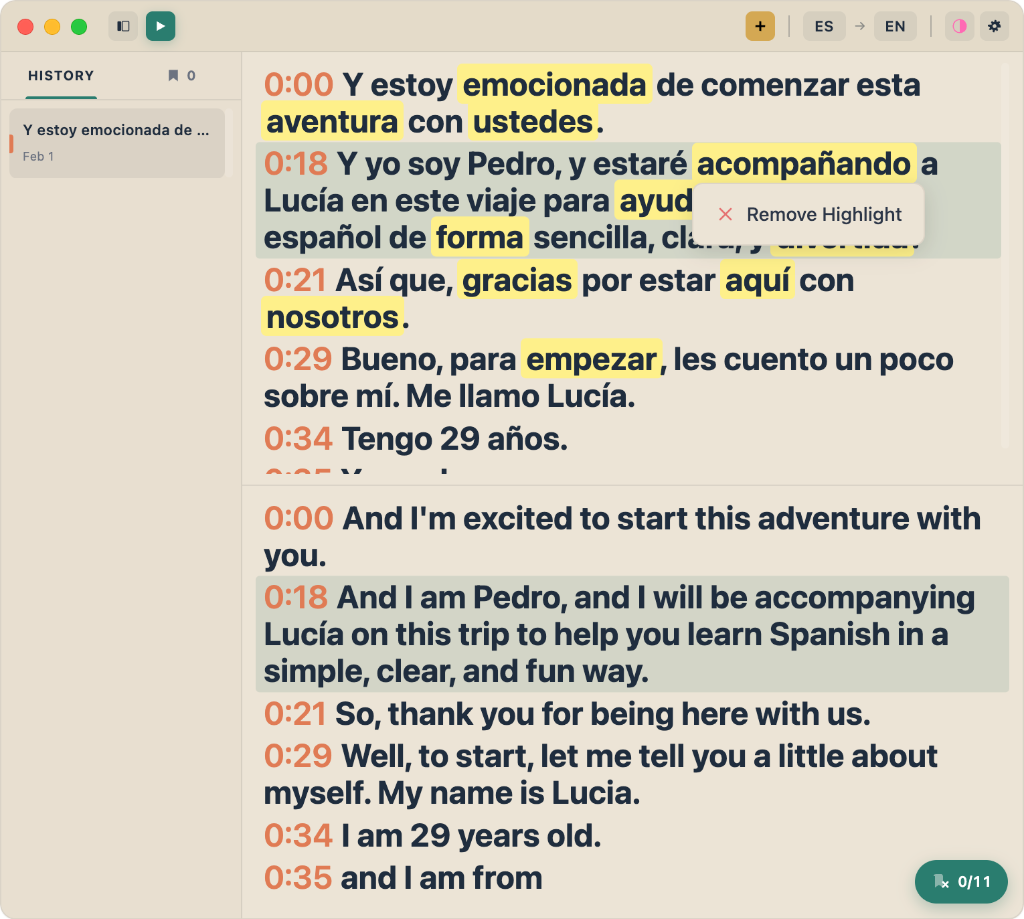
This "Hover-to-Show" approach keeps the interface clean while making removal accessible when you need it.
The Highlight Collection Panel
Your highlights aren't just scattered across sessions — FluentCap consolidates them in a dedicated Highlights tab in the sidebar.
Accessing Your Highlights
In the sidebar, you'll see two tabs:
| Tab | Contents |
|---|---|
| History | Your transcription sessions |
| Highlights | All highlights across all sessions |
The Highlights tab shows a live badge count (🔖 15) so you always know how many moments you've saved.
How Highlights Are Organized
Highlights are grouped by session with collapsible sections:
- Session Header: Shows title, date, and highlight count
- Highlight Cards: Compact cards showing the exact highlighted text
- Field Badge: Indicates if the highlight is from "Source" or "Translated" text
This structure makes it easy to review highlights from a specific session or scan across all your captured moments.
Global Actions
The Highlight Collection offers powerful bulk actions:
| Action | What It Does |
|---|---|
| Copy All | Copies every highlight to clipboard as structured text |
| Clear All | Removes all highlights (with confirmation) |
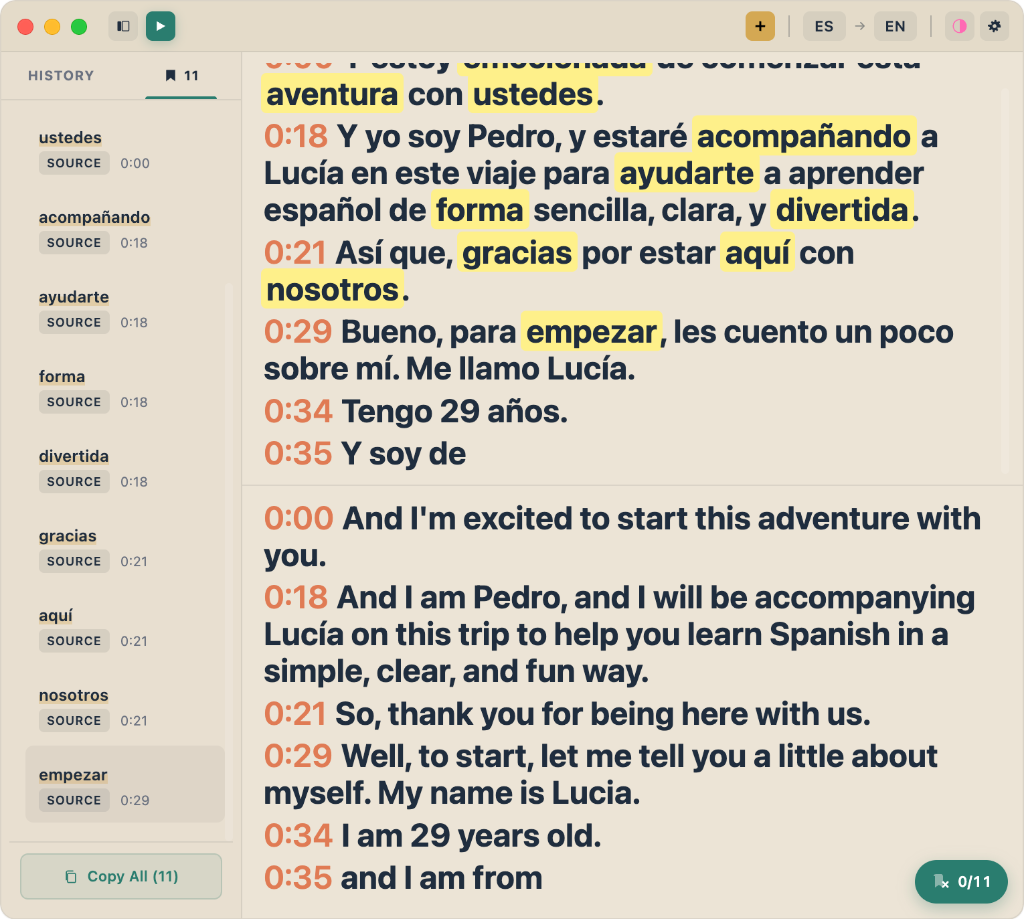
The "Copy All" feature is perfect for exporting your notes to a document, study sheet, or flashcard app.
Cross-Session Navigation
One of FluentCap's most powerful features is instant navigation to any highlight across any session.
Jump to Highlight
When you click a highlight card in the Collection:
- FluentCap switches to that session
- The transcript scrolls to the exact segment
- The highlight is visually focused with a brighter gold color
- A brief flash animation guides your eye to the location
This means you can have highlights from dozens of sessions and jump to any one of them in seconds.
Sequential Navigation
For focused review, FluentCap provides a navigation button in History Mode:
- Next (→): Jump to the next highlight
- Counter: Shows your position (e.g., "0/11")
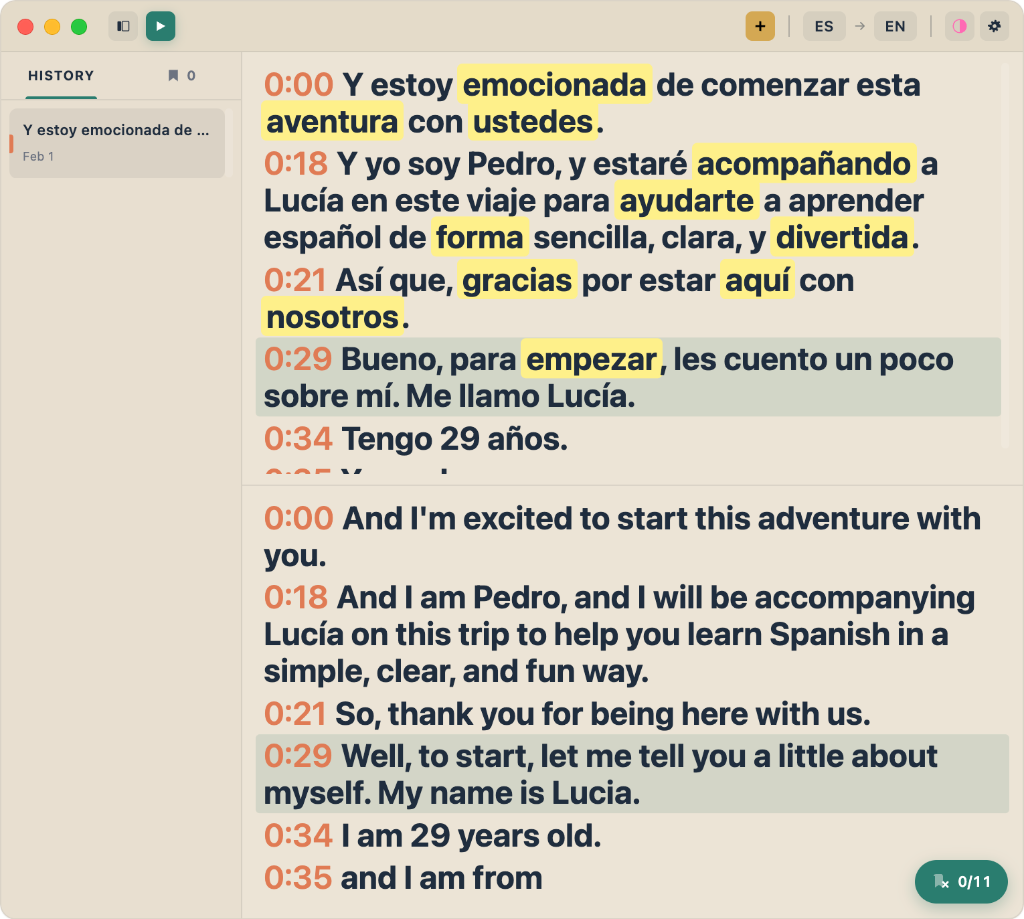
Navigation automatically cycles — when you reach the last highlight, pressing "Next" returns you to the first.
This "Sweep and Review" workflow is perfect for:
- Studying vocabulary from a language learning session
- Reviewing key points from a meeting
- Preparing flashcards from lecture notes
Highlight Management
FluentCap's highlight system is designed for long-term management of your important moments.
Persistence
Highlights are saved as part of your session data:
- Stored locally on your machine (privacy-first)
- Survive app restarts — your highlights are never lost
- Work with both source and translated text
Smart Matching
During live sessions, STT providers sometimes adjust text after sending it (adding punctuation, fixing capitalization). FluentCap uses a Hybrid Matching Strategy to ensure your highlights survive these updates:
- Exact Position Match: Check if the text is still at the same position
- Case-Sensitive Search: Look for the text elsewhere in the segment
- Case-Insensitive Fallback: Find the text even if capitalization changed
This means your highlights stay attached to the right words even as the transcript refines itself.
Statistics
The Highlight Collection gives you visibility into your annotation habits:
- Total count across all sessions
- Per-session counts in the collapsible headers
- Badge in sidebar for quick reference
Use Cases
FluentCap's Highlight feature serves many different workflows.
Language Learning
When watching foreign content, highlight:
- New vocabulary you want to learn
- Idioms and expressions that seem interesting
- Grammar patterns you notice
After the session, use "Copy All" to export highlights to your flashcard app (Anki, Quizlet, etc.).
Academic Research
When transcribing interviews or lectures:
- Mark key quotes for your paper
- Highlight important data points
- Tag follow-up questions for later
The cross-session navigation lets you easily return to any quote when writing.
Business Meetings
During international meetings:
- Highlight action items discussed
- Mark decisions that were made
- Note key objections or concerns
Review your highlights after the meeting to prepare meeting notes quickly.
Content Creation
When researching from foreign sources:
- Mark interesting facts for your content
- Highlight statistics you might want to cite
- Save quotes that resonate
Frequently Asked Questions
Where are highlights stored?
All highlights are stored locally on your computer as part of your session data. FluentCap never sends your highlights to any server.
Can I highlight text during live transcription?
Yes! FluentCap uses "Instant-Apply Mode" during live sessions — just select text and it's highlighted immediately. No menu clicks needed.
How do I find all my highlights?
Click the Highlights tab in the sidebar. You'll see all highlights from all sessions, organized by session with collapsible groups.
Can I export my highlights?
Yes! Use the Copy All button in the Highlight Collection to copy all highlights to your clipboard. You can then paste them into any document.
Do highlights work with translations?
Absolutely! You can highlight text in both the source transcription and the translation. Each highlight is labeled with a "Source" or "Translated" badge.
What if I accidentally highlight the wrong text?
Simply hover over the highlight and click the Remove button that appears. The text returns to normal.
Start Highlighting Today
FluentCap's Highlight feature transforms your transcriptions from passive text dumps into organized, navigable notes.
Whether you're learning a language, conducting research, or attending international meetings — marking key moments ensures you'll never lose important insights again.
The best part? This feature is completely free, like everything else in FluentCap.
Related Articles
Discover more FluentCap features:
- Introducing FluentCap — Learn about our mission and BYOK model
- Learn Languages by Watching Movies — Turn entertainment into education
- FluentCap for International Meetings — Work confidently across languages
— FluentCap Team
Built to bring good things to the world.