Audio Transcription Playback with Synced Transcript (Click to Jump)
Capture every word, replay anytime. FluentCap automatically records audio during transcription sessions, with bi-directional sync that lets you click any sentence to hear it, or watch the transcript highlight as audio plays.
- Why Audio Recording Matters
- How Audio Recording Works
- The Audio Playback Experience
- Bi-Directional Sync
- Jump to Any Sentence
- Sequential Navigation
- How FluentCap Compares
- Use Cases
- Frequently Asked Questions
- Start Recording Today
Why Audio Recording Matters
You're watching a foreign film, attending an international conference, or studying a podcast in Korean. FluentCap transcribes everything in real-time — but what about the audio itself?
Sometimes you need to hear the original pronunciation. Maybe you want to revisit a specific moment to understand the speaker's tone. Or perhaps you're learning a language and want to practice shadowing by replaying sentences.
Traditional transcription apps give you text, but they lose the audio. That's like taking notes in a lecture but throwing away the recording — you lose the full context.
FluentCap's Audio Recording & Playback feature captures everything. Every session is automatically recorded as high-quality MP3, perfectly synchronized with your transcript. Later, you can replay any moment, jump to specific sentences, and experience the seamless connection between text and sound.
The Problem with Text-Only Transcripts
Research in language acquisition shows that listening comprehension and reading comprehension are distinct cognitive skills. A 2022 study on transcript-assisted listening found that using transcripts alongside audio can increase learner retention by up to 30% — particularly for fast speech and unfamiliar accents.
Reading a transcript alone doesn't help you:
- Recognize natural speech patterns — Speakers blend words, use contractions, and speak at varying speeds
- Learn pronunciation — You can't hear how a word sounds from text alone
- Understand emotional context — Tone, emphasis, and pauses carry meaning that text can't capture
- Connect sounds to spelling — Phonological decoding requires hearing the audio while seeing the written form
By keeping audio transcription playback synchronized with your transcript, FluentCap gives you the complete multimodal learning experience.
How Audio Recording Works
FluentCap automatically records audio whenever you start a transcription session. No extra steps, no separate apps — just start capturing, and the audio is saved.
Automatic Capture
When you press Start in FluentCap:
- Transcription begins — Your selected STT provider starts processing audio
- Recording starts — Audio is encoded to high-quality MP3 in real-time
- Timestamps sync — Each transcript segment is linked to its exact position in the audio
The recording happens in the background — completely invisible. You focus on watching your content; FluentCap handles the technical work.
High-Quality MP3 Encoding
FluentCap uses FFmpeg under the hood to encode audio:
| Parameter | Value |
|---|---|
| Format | MP3 (libmp3lame) |
| Bitrate | 128kbps |
| Sample Rate | 16kHz (matching STT input) |
| Channels | Mono |
This configuration provides excellent voice quality at a reasonable file size — about 1MB per minute of audio. Perfect for storing many hours of sessions.
Session Continuity
What if you pause and resume? FluentCap handles this gracefully:
- Pause: Recording stops, transcript pauses
- Resume: Recording continues, new audio is merged with the previous segment
- Result: A single continuous MP3 file per session
This "merge on stop" pattern ensures you always have one clean audio file per session, regardless of how many times you paused.
The Audio Playback Experience
After a session ends, your recording moves to History Mode. This is where the magic happens.
The Audio Player
At the bottom of the transcript, FluentCap displays a compact audio player with everything you need:
| Control | Function |
|---|---|
| Play/Pause | Start or stop playback |
| Seek Bar | Drag to any position in the recording |
| Time Display | Shows current position and total duration |
| Download | Export your audio as MP3 |
The player is designed to stay unobtrusive — it's always there when you need it, but never distracts from your reading.
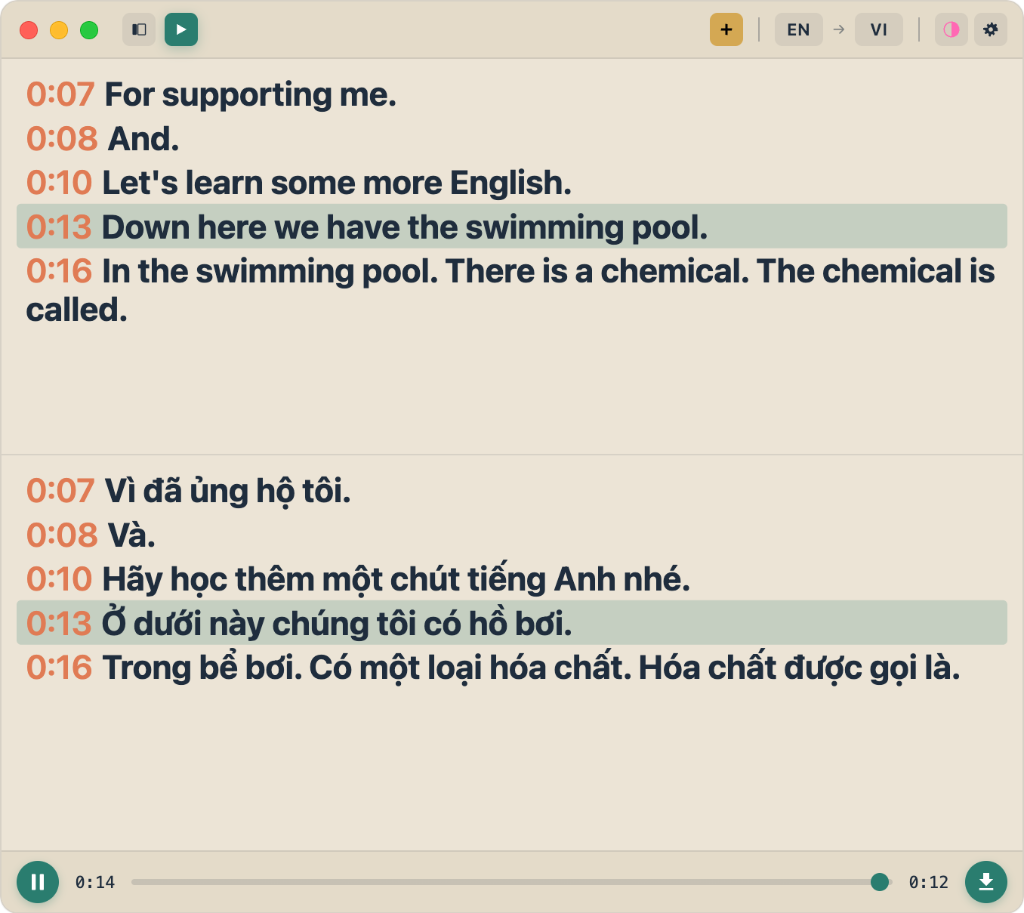
Synchronized Highlighting
As audio plays, the transcript comes alive:
- Current segment highlights — The sentence being spoken is visually marked
- Auto-scroll — The transcript smoothly scrolls to keep the current segment visible
- Visual feedback — A subtle highlight effect guides your eye to the right place
This synchronized highlighting transforms passive reading into an active listening experience. You follow along naturally, connecting the words you see with the sounds you hear.
Bi-Directional Sync
FluentCap's synchronization works both ways — this is what makes it truly powerful.
Audio → Transcript (Listen and Follow)
When you play audio:
- FluentCap calculates the current playback position in seconds
- The matching transcript segment is identified by timestamp
- That segment is highlighted and scrolled into view
This direction is perfect for:
- Passive review — Play the entire session and follow along
- Comprehension practice — Listen while reading translations
- Pronunciation study — See how spoken words match written text
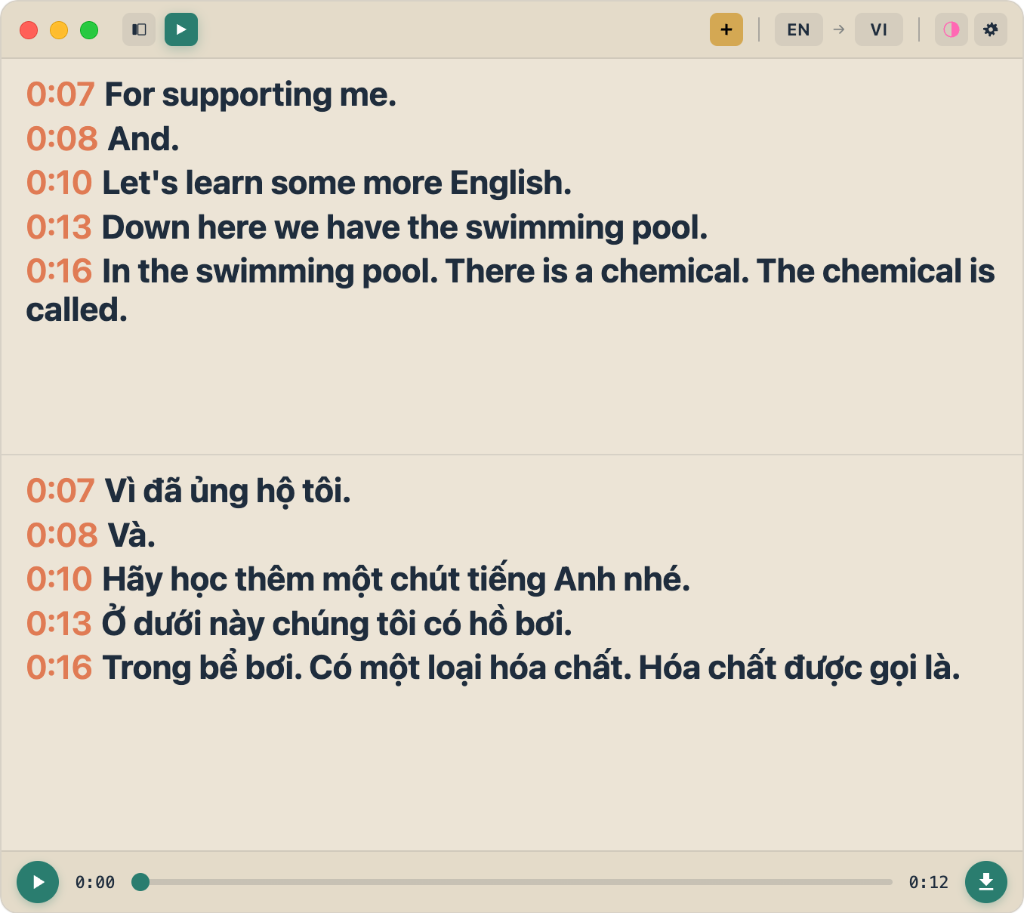
Transcript → Audio (Click and Jump)
When you click any transcript segment:
- FluentCap reads the timestamp of that sentence
- The audio player seeks to that exact position
- Playback can continue from that point
This direction is perfect for:
- Focused review — Jump directly to a specific moment
- Shadowing practice — Replay a sentence multiple times
- Quote verification — Hear exactly how something was said
The Technical Magic
Behind the scenes, FluentCap calculates offsets and handles edge cases:
- Multi-segment support — If a session has multiple recording segments (from pausing), FluentCap calculates the correct position across all segments
- STT delay compensation — Speech-to-text processing adds ~1.5 seconds of delay; FluentCap compensates to align timestamps accurately
- Global time mapping — Each transcript segment's timecode is mapped to a "global" position in the audio timeline
You don't see any of this complexity — it just works.
Jump to Any Sentence
One of FluentCap's most-requested features: click to seek.
How It Works
In History Mode, every transcript line is clickable:
- Click any sentence in the transcript
- Audio jumps to the exact timestamp of that sentence
- Continue listening from that point
There's no menu, no extra steps. Click once, hear immediately.
Use Cases for Click-to-Seek
| Scenario | How Click-to-Seek Helps |
|---|---|
| Learning vocabulary | Hear how a new word is pronounced |
| Checking nuance | Verify the emotional tone of a statement |
| Shadowing practice | Replay a sentence repeatedly to mimic the speaker |
| Content creation | Find the exact audio clip for a quote |
Maintaining Playback State
Importantly, FluentCap preserves your current playback state when you click:
- If audio was paused, it stays paused after seeking
- If audio was playing, it continues playing from the new position
This thoughtful design means you can navigate without disrupting your workflow.
Sequential Navigation
Beyond clicking individual sentences, FluentCap offers sequential highlight navigation for systematic review.
The Navigation Button
In the audio player bar, you'll see a navigation button next to the download icon:
- Arrow icon with a highlight badge
- Counter showing your position (e.g., "3/15")
Clicking this button:
- Jumps to the next highlight in your transcript
- Scrolls both panels (source and translation) to that position
- Updates the counter to show your new position
Circular Navigation
When you reach the last highlight, pressing the button returns you to the first highlight. This creates a loop for focused review:
Highlight 1 → Highlight 2 → ... → Highlight 15 → back to Highlight 1
Combined with Audio Playback
Sequential navigation syncs with the audio player:
- Jump to a highlight
- The audio player seeks to the timestamp of that segment
- Play to hear the highlighted section
- Jump to next highlight and repeat
This workflow is ideal for:
- Vocabulary review — Cycle through highlighted words and hear each one
- Quote collection — Jump between key moments in an interview
- Study sessions — Systematically review important sections
How FluentCap Compares
Most transcription tools focus on text output — they convert speech to text, then discard the audio. FluentCap takes a different approach.
Traditional Transcription Tools
| Feature | Typical Tools | FluentCap |
|---|---|---|
| Audio Recording | Manual / Separate app | Automatic, integrated |
| Transcript Playback | Not available | Full audio playback |
| Click to Jump | Not available | Click any sentence |
| Bi-directional Sync | Not available | Audio ↔ Transcript |
| Highlight Navigation | Not available | Jump between highlights |
| Privacy | Cloud-based | 100% local |
Why This Matters
Unlike tools like Otter.ai, Rev, or Descript that focus on text extraction, FluentCap is designed for learners and researchers who need to:
- Replay specific moments without scrubbing through audio manually
- Connect written words to their spoken form
- Practice pronunciation through synchronized playback
- Navigate large transcripts efficiently
If you're using transcription purely for documentation, traditional tools work fine. But if you're learning a language, conducting research, or reviewing foreign content, FluentCap's audio transcription playback gives you capabilities other tools simply don't offer.
Use Cases
FluentCap's Audio Recording & Playback feature transforms how you interact with foreign language content.
Language Learning
When studying through immersion:
- Record lectures in your target language
- Replay difficult sentences until you understand
- Shadow native speakers by repeating audio segments
- Connect pronunciation to spelling through synchronized playback
The bi-directional sync particularly helps with listening discrimination — hearing the differences between similar sounds.
Academic Research
When transcribing interviews or primary sources:
- Capture original audio for citation accuracy
- Jump to specific quotes when writing papers
- Verify translations against the original spoken words
- Archive sessions with both audio and text for future reference
Professional Meetings
For international business communications:
- Review important discussions by replaying key sections
- Clarify misunderstandings by hearing the original statement again
- Train on pronunciation of names and technical terms
- Share recordings with colleagues who couldn't attend
Content Creation
When researching from foreign sources:
- Extract audio clips for podcasts or videos
- Verify quotes by hearing the original context
- Study delivery patterns of effective speakers
- Download MP3s for external editing
Frequently Asked Questions
Does FluentCap record audio automatically?
Yes! Audio recording starts automatically when you begin a transcription session. There's no separate button to press — just start capturing, and FluentCap records everything in the background.
Where are recordings stored?
Audio files are stored locally on your computer in FluentCap's data directory. Each session gets its own MP3 file. Your recordings never leave your device unless you explicitly export them.
How do I replay a past session?
Click the session in your History sidebar. The audio player appears at the bottom of the transcript. Press Play to start listening, and watch as the transcript highlights each sentence in real-time.
Can I jump to a specific sentence?
Absolutely! Just click any line in your transcript. The audio player automatically seeks to that timestamp. Your playback state (playing/paused) is preserved.
How does bi-directional sync work?
When audio plays, the matching transcript line highlights and scrolls into view. When you click a transcript line, the audio jumps to that position. Both directions work seamlessly.
Can I download the audio?
Yes! Click the download button in the audio player to export your session as an MP3 file. The file includes the complete recording.
Does it work with all providers?
Yes! Audio recording works with all STT providers (Deepgram, AssemblyAI, Gladia, Shunya). The recording captures whatever audio your system is sending to FluentCap.
What about privacy?
All recordings are stored locally on your computer. FluentCap never uploads your audio to any server. You have complete control over your data.
Is audio transcription playback free?
Yes! Audio recording and playback is completely free, like all FluentCap features. You only pay for the STT provider API costs (which you control through your own API keys).
Can I use audio transcription playback offline?
Playback of recorded sessions works offline. However, live transcription requires an internet connection to communicate with your STT provider.
Start Recording Today
FluentCap's Audio Recording & Playback feature gives you the complete experience — not just text, but the living, breathing audio of every conversation.
Whether you're learning a language, conducting research, or attending international meetings, having audio synchronized with your transcript opens new possibilities:
- Replay any moment with a single click
- Follow along as transcripts highlight in real-time
- Jump to sentences for focused review
- Download recordings for external use
The best part? This feature is completely free, like everything else in FluentCap. Your sessions are automatically recorded — just start transcribing, and the audio is captured.
Related Articles
Discover more FluentCap features:
- Highlight Feature: Save Important Moments — Mark and navigate to key moments in your transcripts
- Learn Languages by Watching Movies — Turn entertainment into education
- Listen to Foreign Audiobooks with Subtitles — Experience audiobooks in any language
— FluentCap Team
Built to bring good things to the world.